 MSRX Invoice
Step-by-step guide
How to make an invoice in five minutes
No account, no installation. Follow these 17 short steps. Each one has a picture of exactly what you will see. You can print this page or save it as a PDF.
Choose Invoice, Quotation or Receipt → add your logo → type your details and the items → set tax and payment → press Download.
1Choose what you want to make
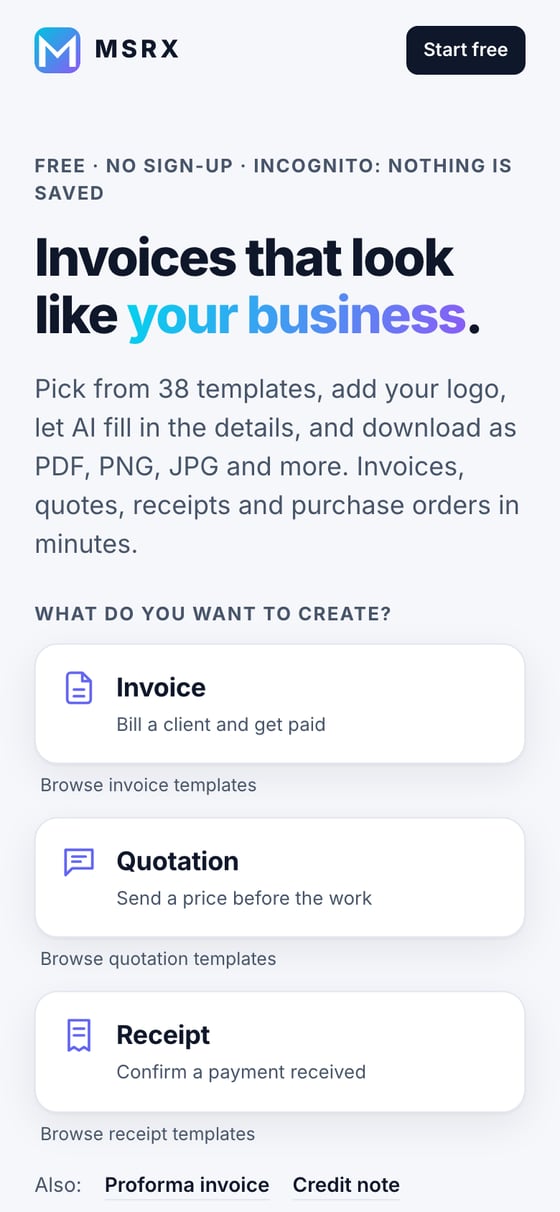
Open invoice.msrx.co.in. At the top you see three big cards. Tap the one you need.
- Invoice – you are asking a client to pay.
- Quotation – you are sending a price before the work starts.
- Receipt – you are confirming that money was received.
- Need a proforma invoice, credit note or purchase order? Use the “Also” links under the cards.
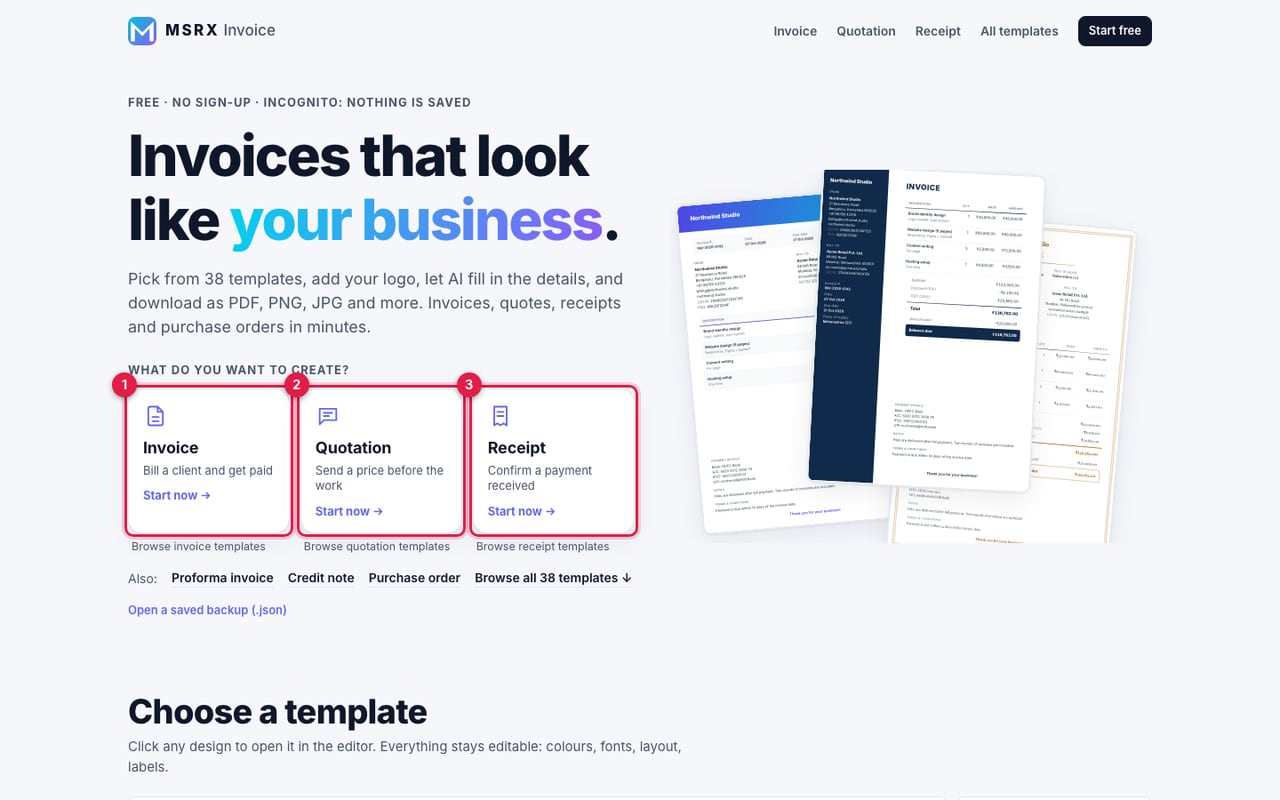
Tip: You do not need an account. Nothing you type is saved anywhere, so there is nothing to sign up for.
2Pick a design (you can change it later)
Scroll down to “Choose a template”. There are 38 designs. Click any one to open it in the editor.
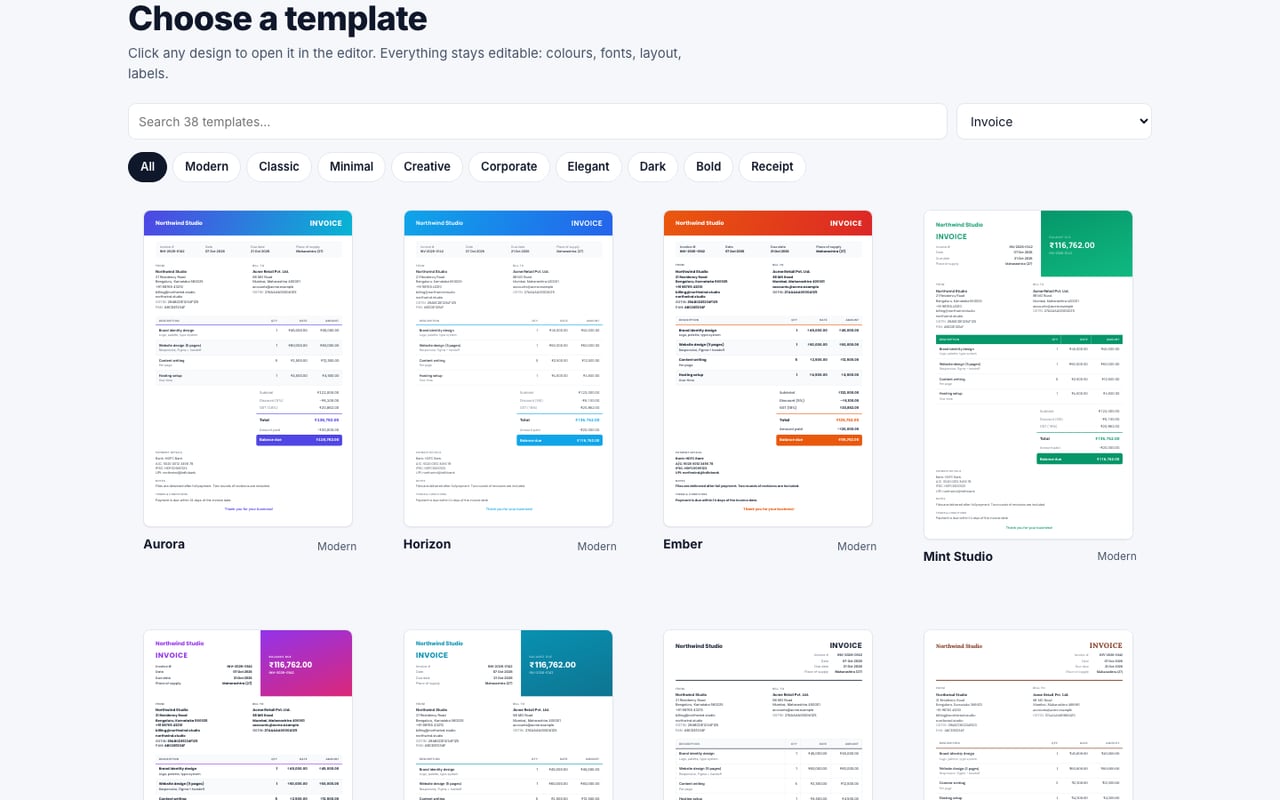
Tip: Not sure? Pick any. The Templates tab inside the editor lets you switch designs at any time and your details stay.
3Know your editor in 10 seconds
The screen has three parts.
- Left side – five tabs: Details, Items, Design, Templates and Ask AI. This is where you type.
- Right side – the live paper. Whatever you type appears here at once.
- Top right – the dark Download button. Also Undo, Redo, “Fill sample” and Print.
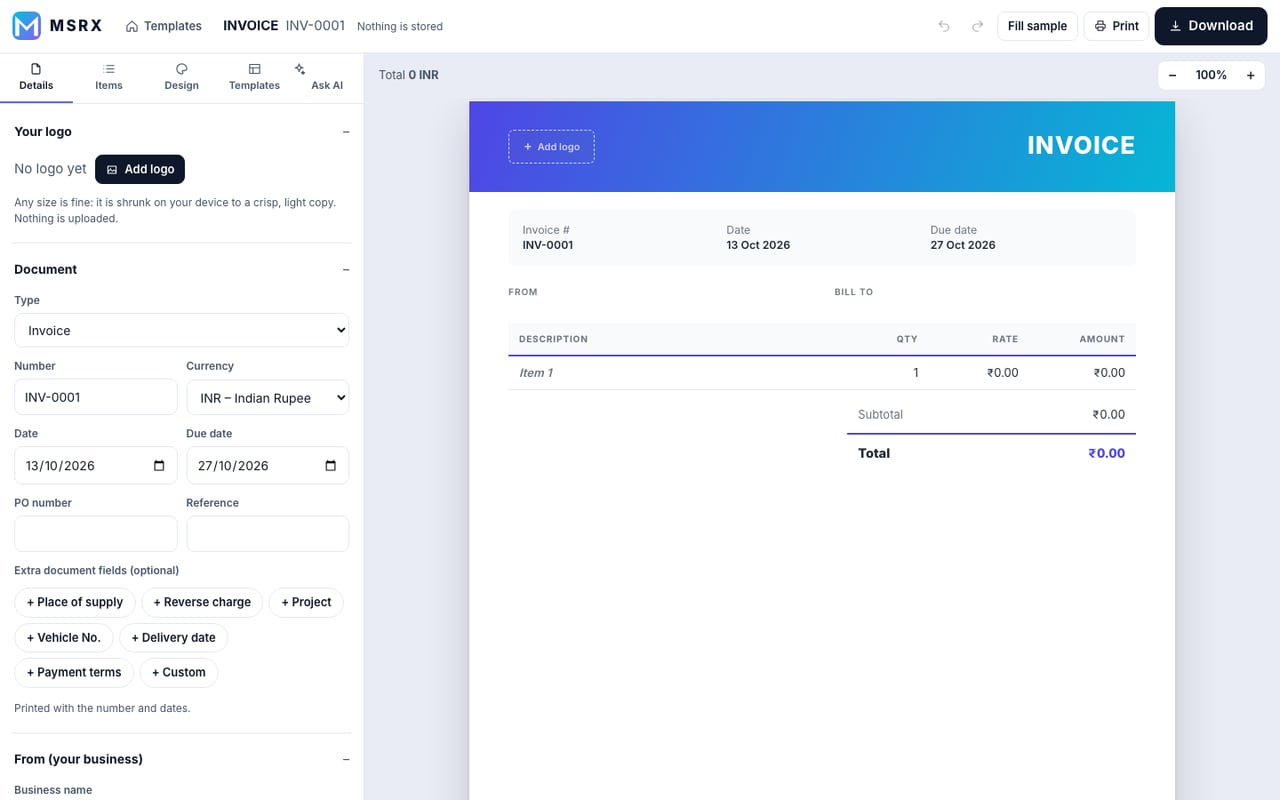
Tip: Press Fill sample to see a complete example invoice, then overwrite it with your own details.
4Add your logo
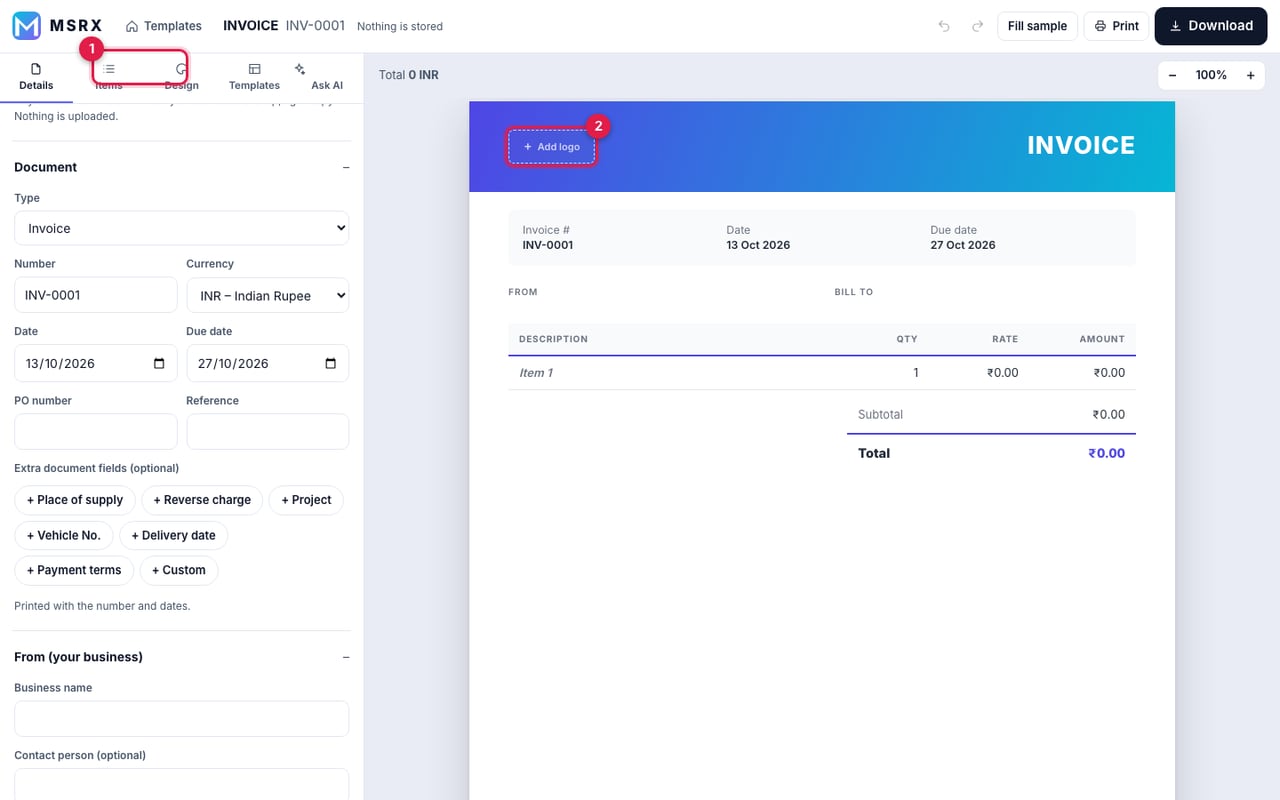
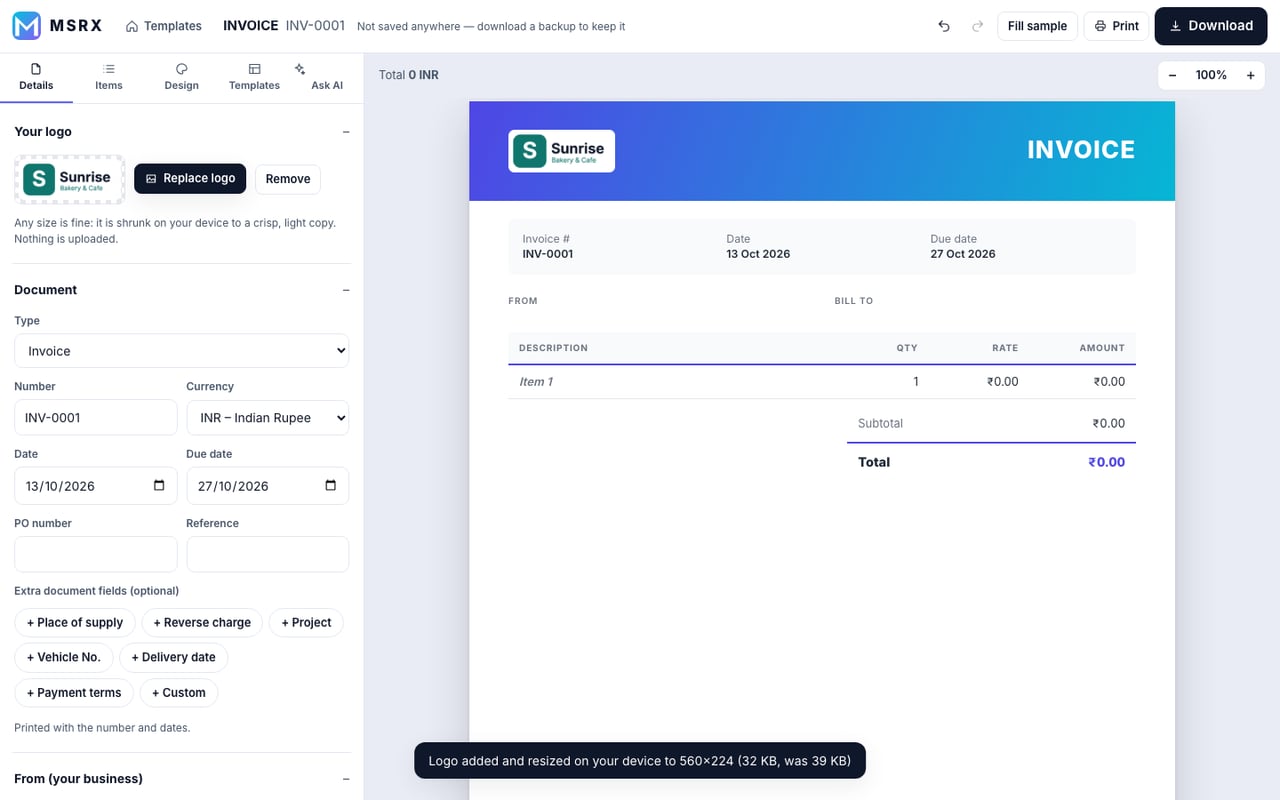
Details tab → “Your logo” → Add logo. You can also click the dotted “Add logo” box on the paper itself.
- Choose any image from your phone or computer: PNG, JPG, WebP or SVG. Any size is fine.
- The app shrinks it to a light, sharp copy on your device. A message tells you the new size. Nothing is uploaded.
- Use “Replace logo” to swap it or “Remove” to take it away.
5Fill in the document details
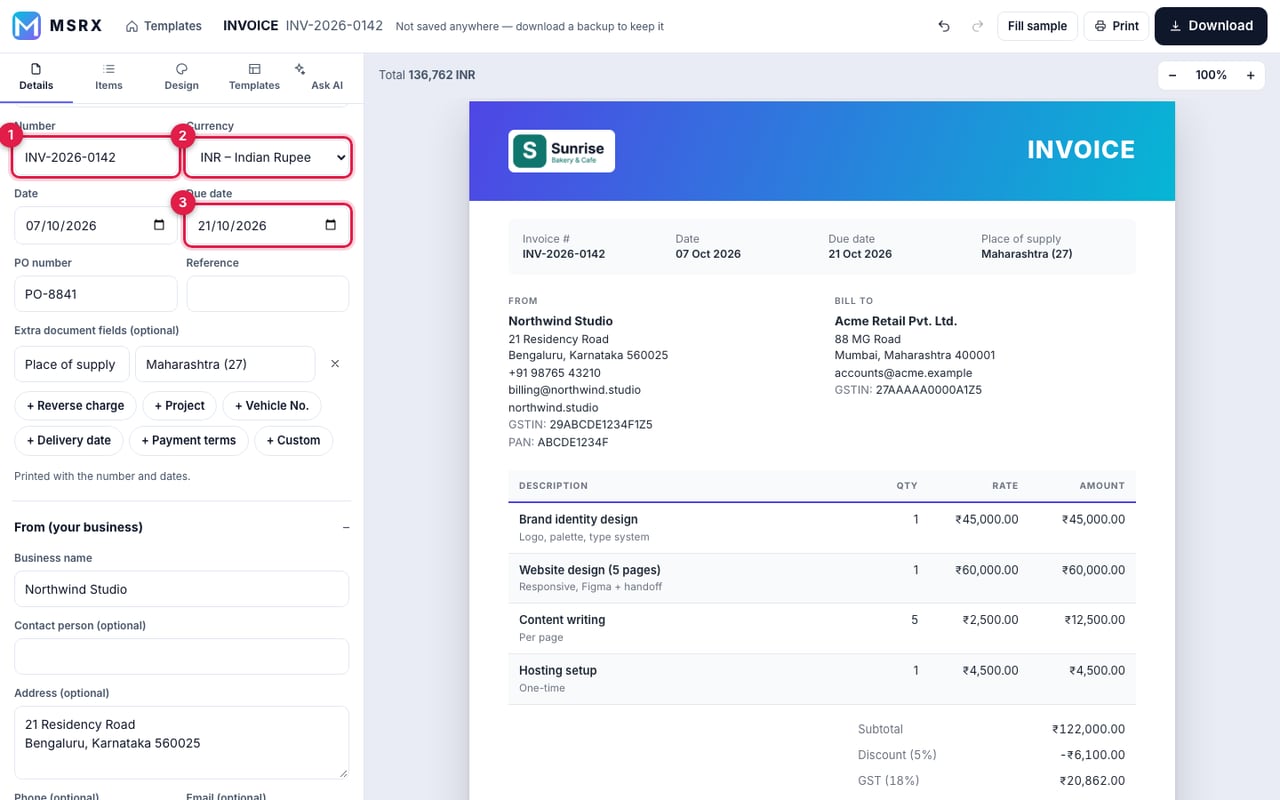
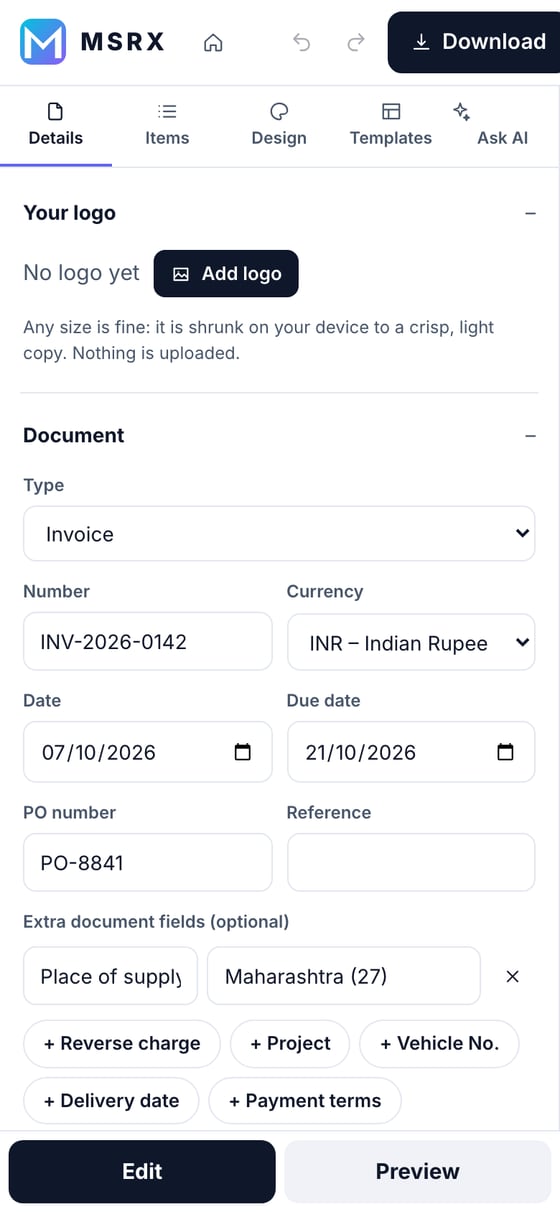
Still on the Details tab, open the “Document” section.
- Number – your invoice number, for example INV-0042.
- Currency – pick from the list (₹ INR, $ USD, € EUR and many more).
- Date and Due date – tap the calendar icon.
- Extra fields such as Place of supply or Project are optional. Tap a button to add one.
6Add your business details
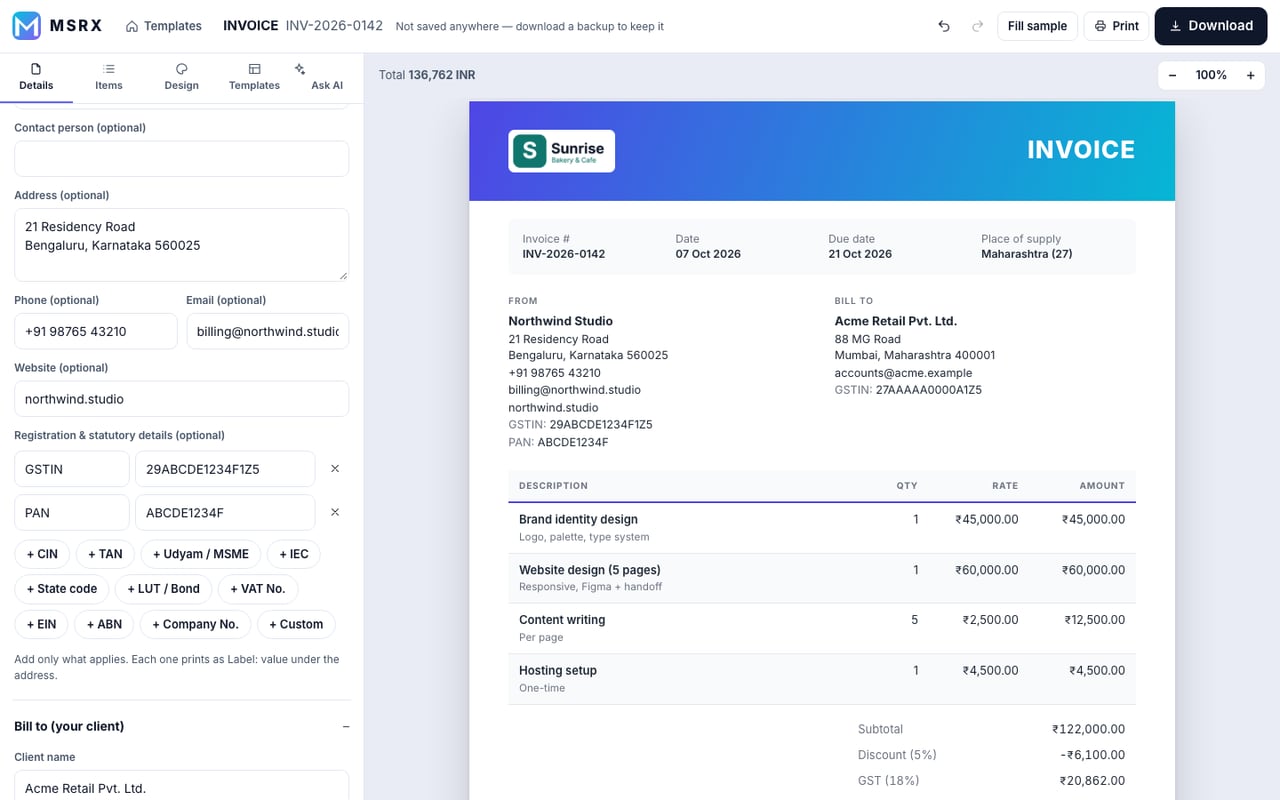
Open “From (your business)”. Only the name is needed. Everything else is optional: empty fields are simply not printed.
- Name, contact person, address, phone, email, website.
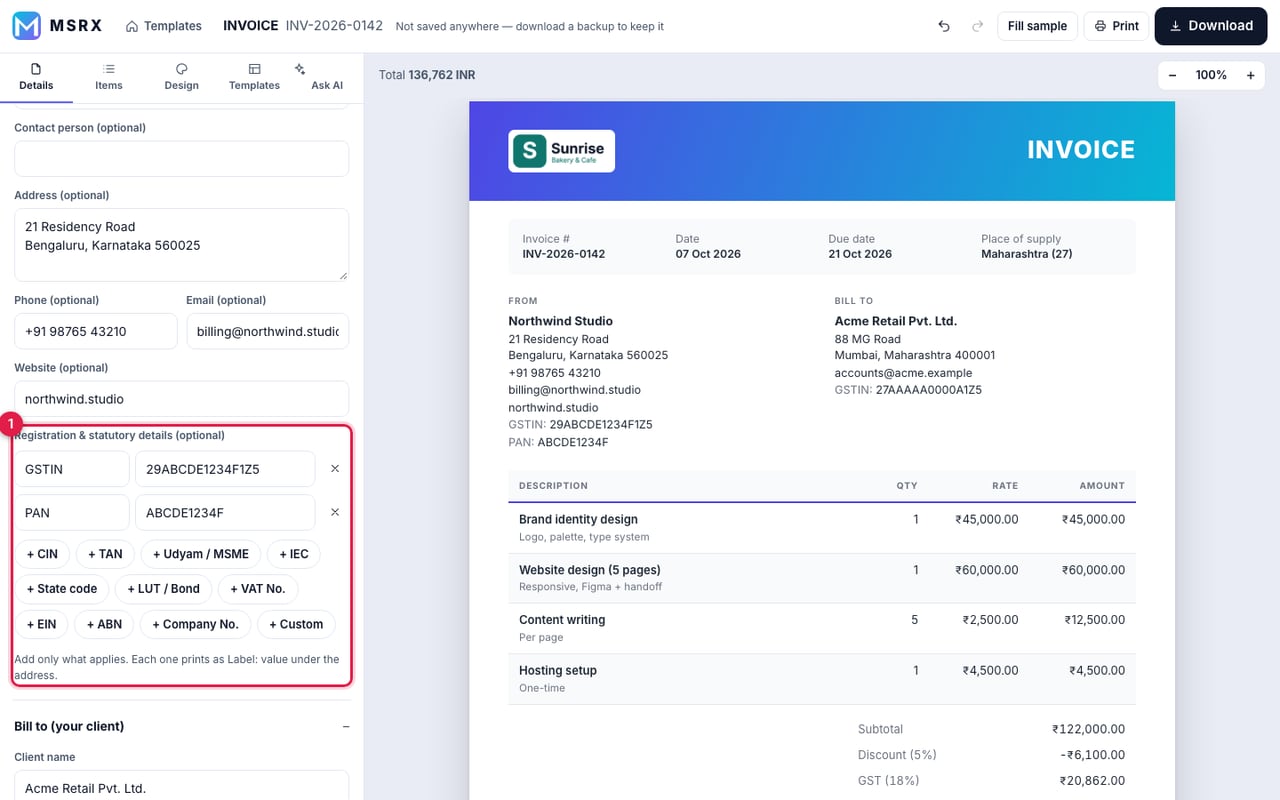
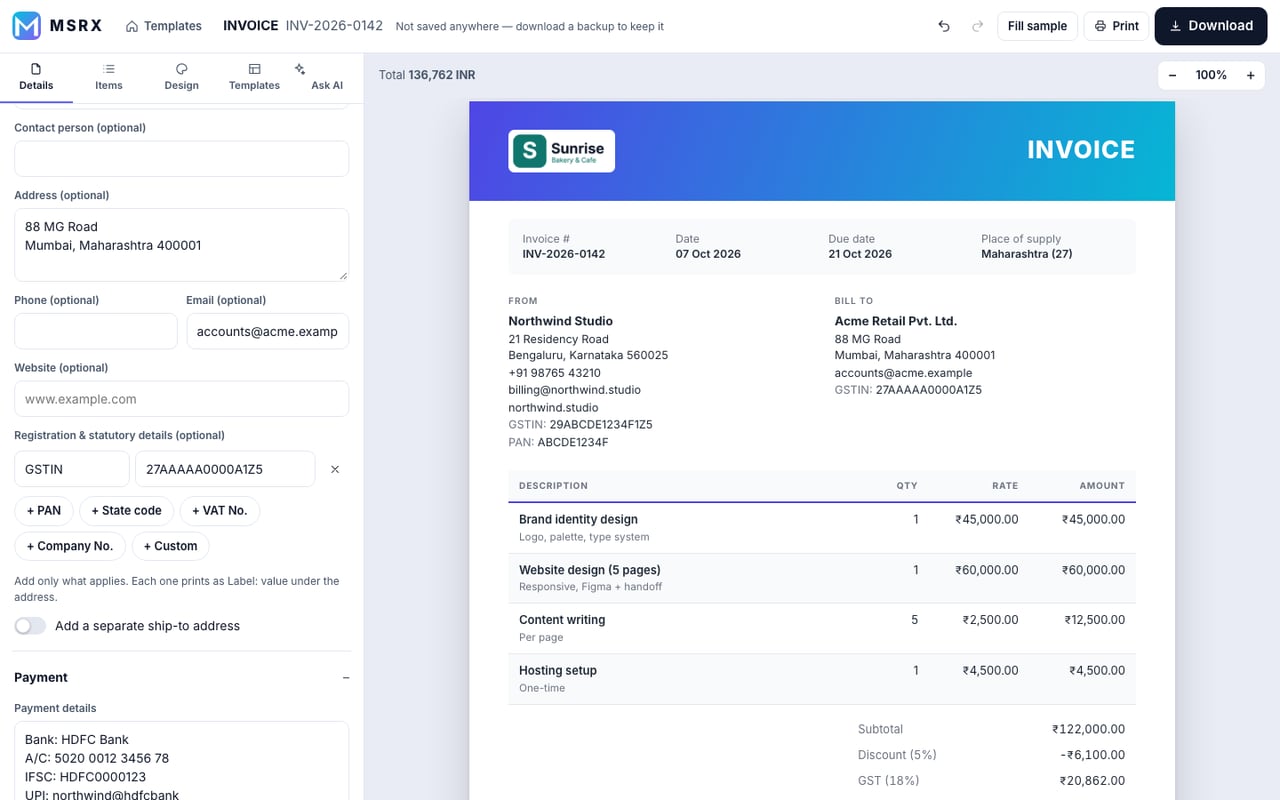
- Under Registration & statutory details tap a button to add GSTIN, PAN, CIN, TAN, Udyam, IEC, VAT, EIN, ABN or your own label. Each one prints as “Label: value” under your address.
7Add your client
Open “Bill to (your client)” and fill in the same way. Client GSTIN or VAT number can be added with the same buttons.
- Turn on “Add a separate ship-to address” only if goods go to a different place.
8List what you are charging for
Open the Items tab. Each line has a description, optional details, quantity and rate. The amount is calculated for you.
- Press Add item for another line.
- Use the small icons on a line to move it up or down, duplicate it or delete it.
- Selling in India? Type an HSN/SAC code and the code column turns on by itself.
9Set tax, discount and advance paid
Scroll down on the Items tab.
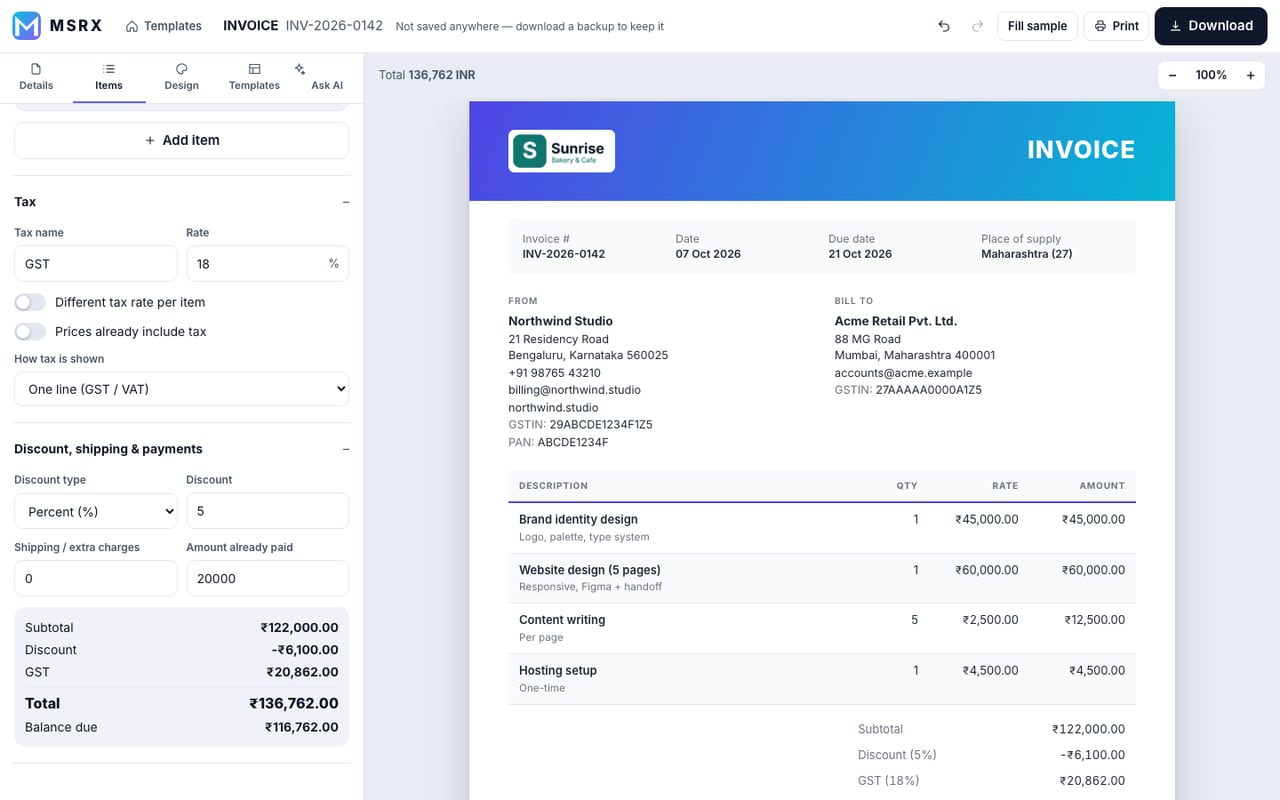
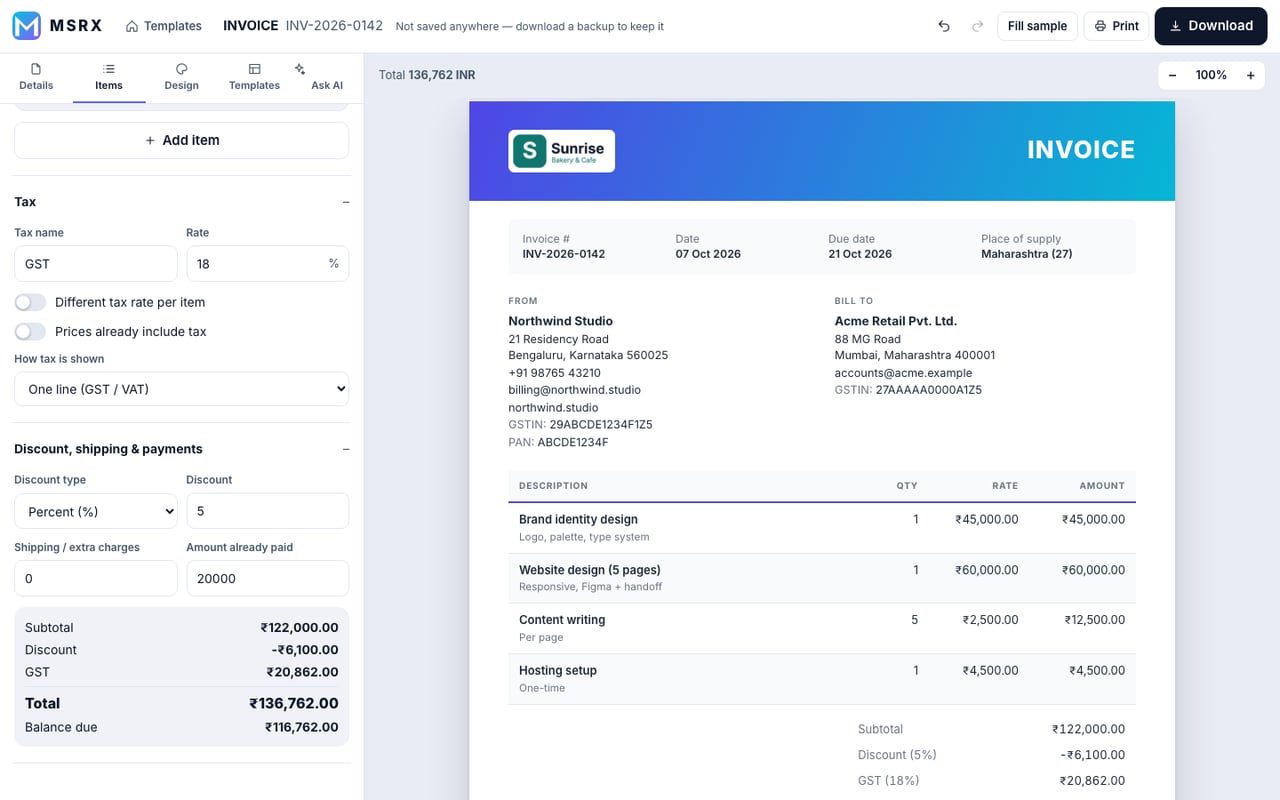
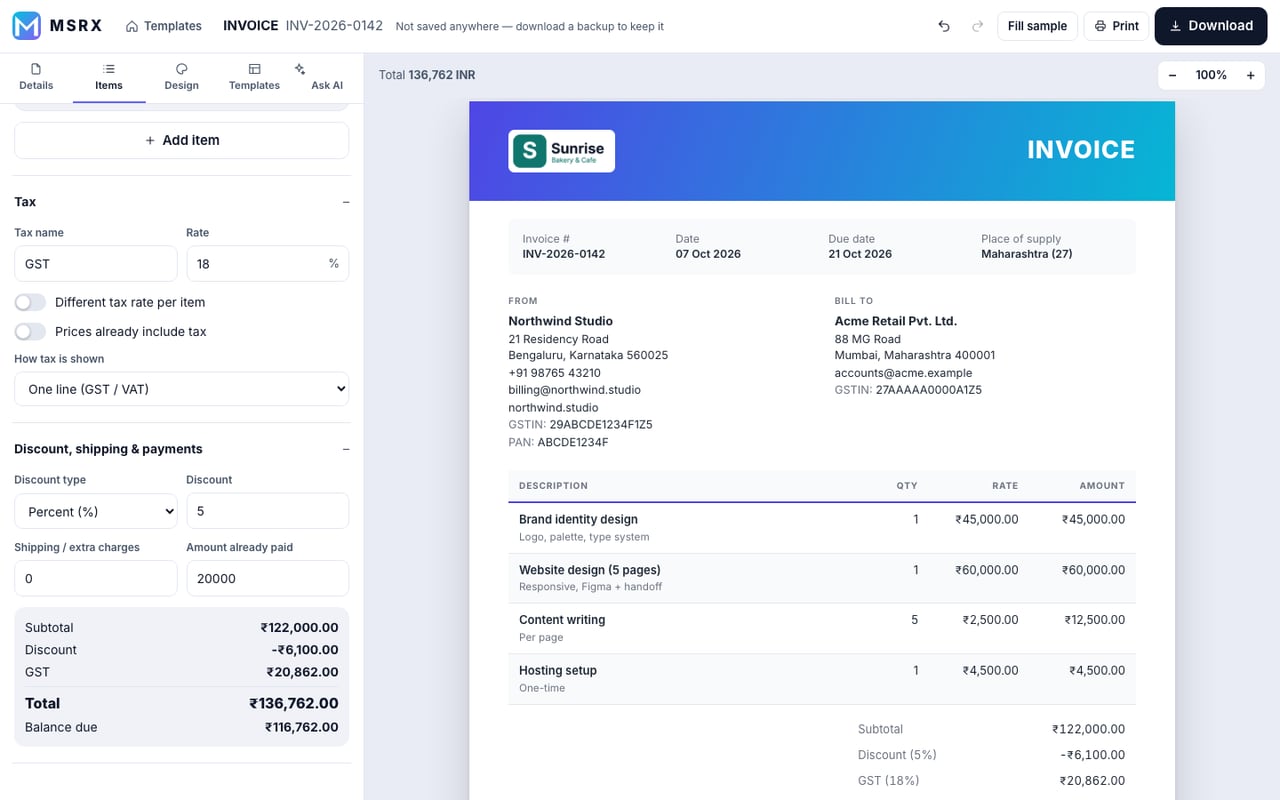
- Tax – name it (GST, VAT, Sales tax) and set the rate. Turn on “Prices already include tax” if your rates are tax-inclusive. “Different tax rate per item” lets each line carry its own rate.
- How tax is shown – one line, or split CGST + SGST, or IGST.
- Discount – a percentage or a flat amount. It is taken off before tax.
- Shipping and Amount already paid – the balance due updates instantly.
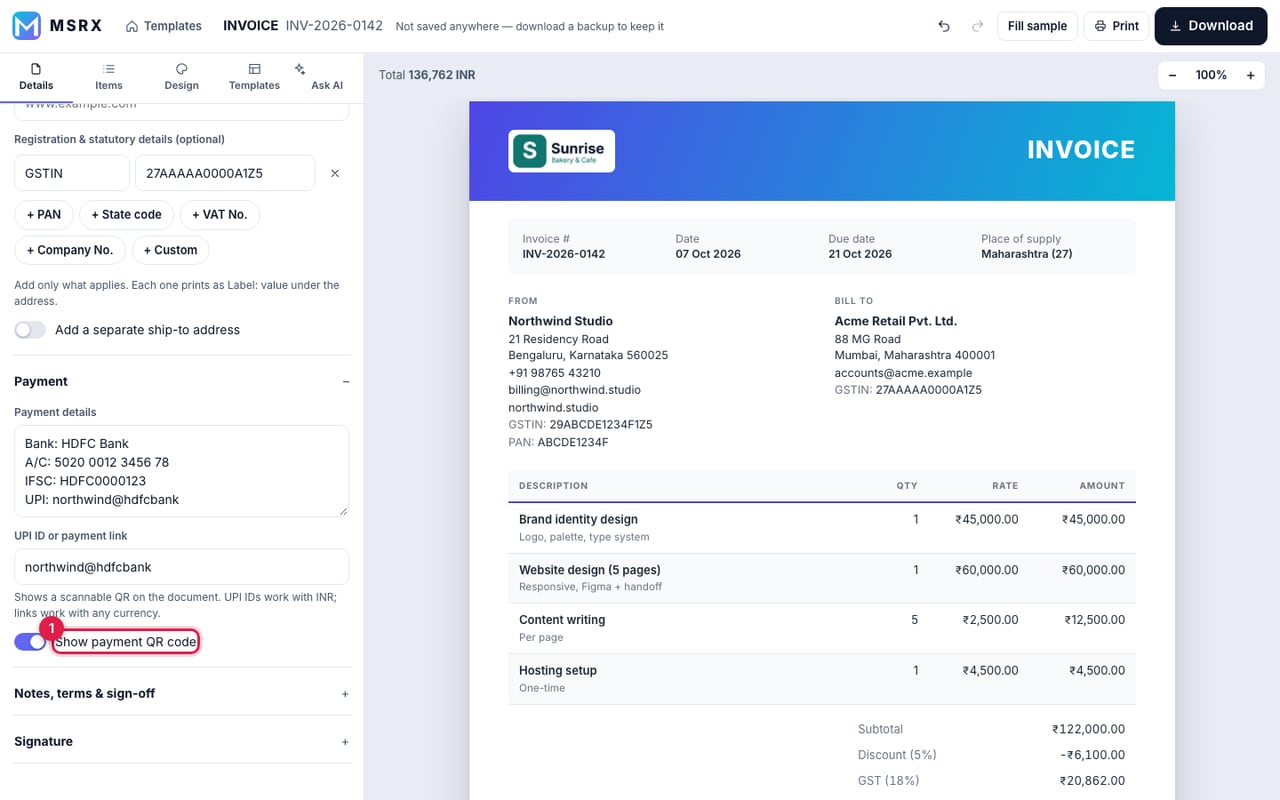
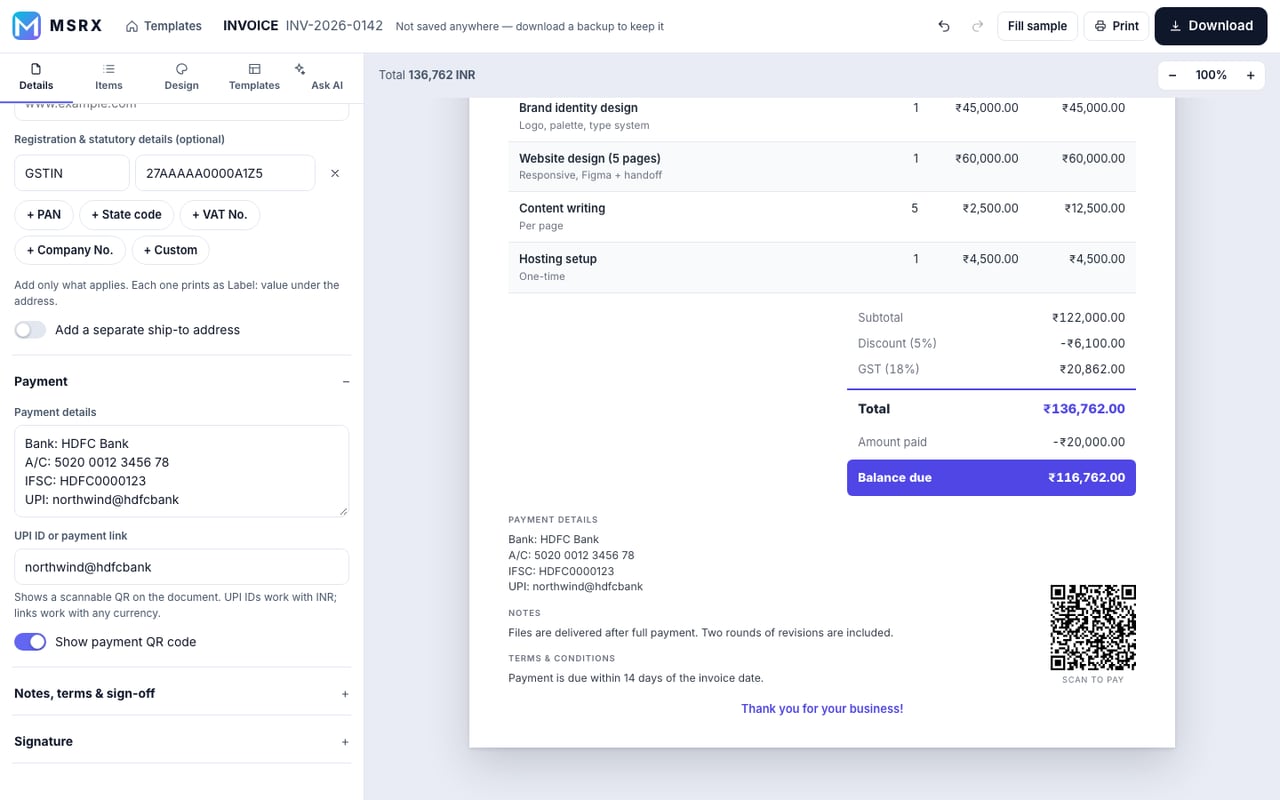
10Tell them how to pay (and add a QR)
Back on Details, open “Payment”.
- Payment details – bank name, account number, IFSC or SWIFT. Anything you type prints as is.
- UPI ID or payment link – then switch on Show payment QR code. A “Scan to pay” QR appears on the invoice with the balance filled in. UPI IDs work for ₹ INR; payment links work in any currency.
11Notes, terms and signature
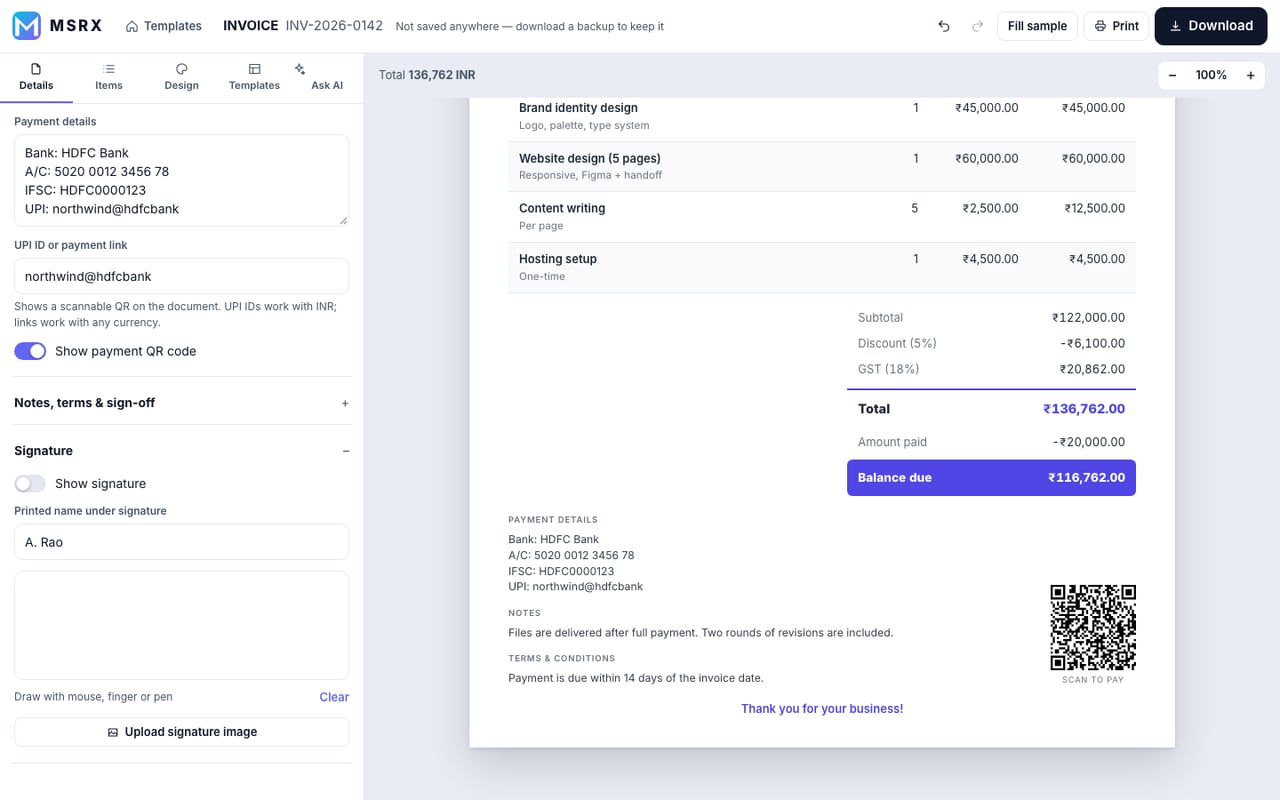
Open “Notes, terms & sign-off” for notes, terms & conditions and a thank-you line. Open “Signature” to sign.
- Switch on “Show signature”, then draw with your mouse, finger or pen, or press Upload signature image.
- The printed name goes under the signature.
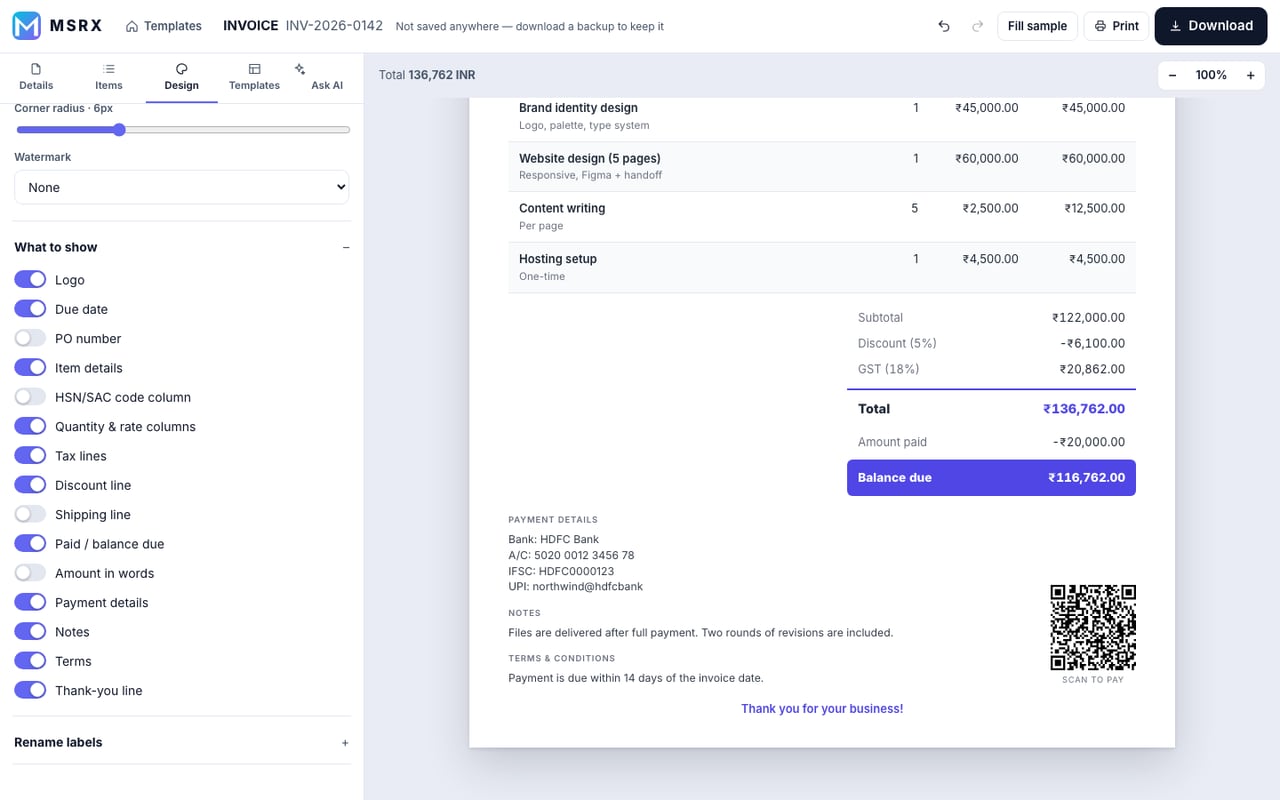
12Make it look like your brand
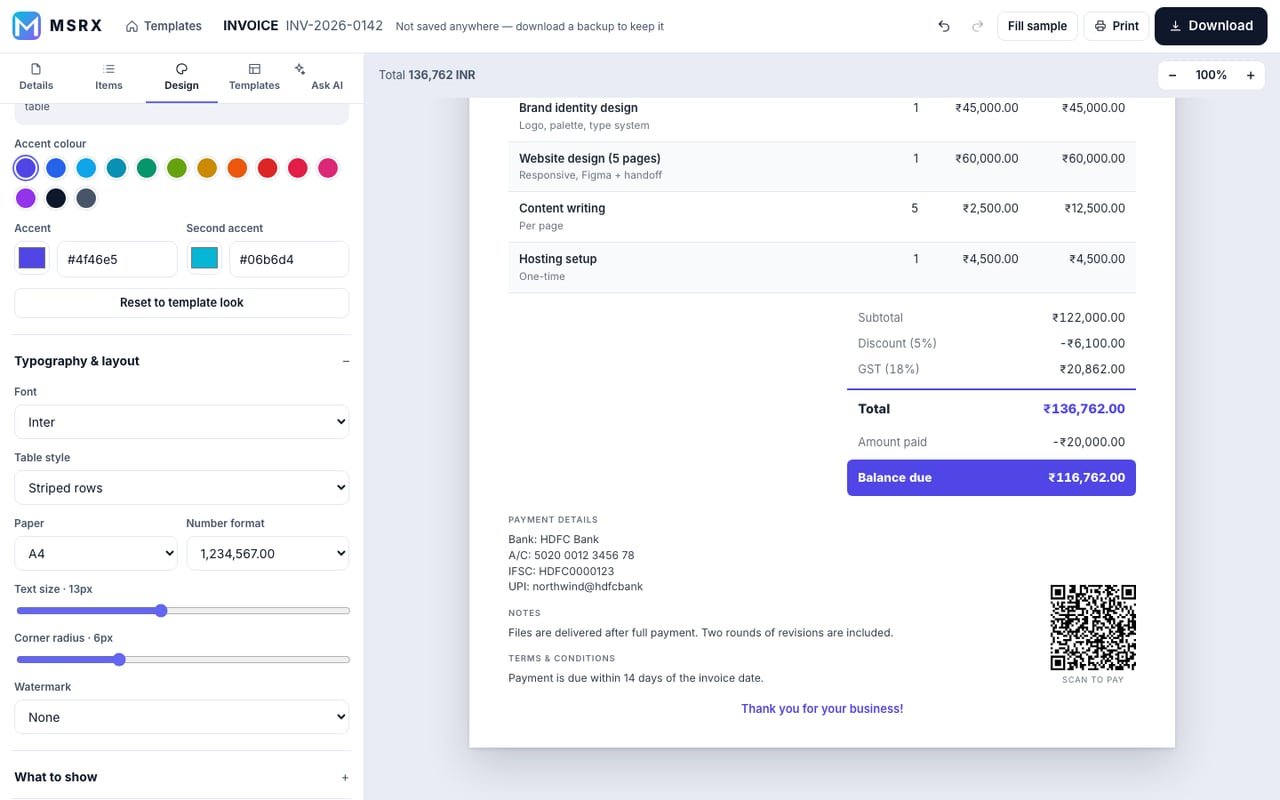
The Design tab changes only the look, never your numbers.
- Accent colour – tap a swatch or type your own hex colour. A second accent colours gradients.
- Font, table style, paper size (A4 or Letter), number format (1,234,567 or the Indian 12,34,567), text size, corner roundness and a watermark such as PAID or DRAFT.
- What to show – switch any part on or off: due date, PO number, shipping, amount in words, notes and more.
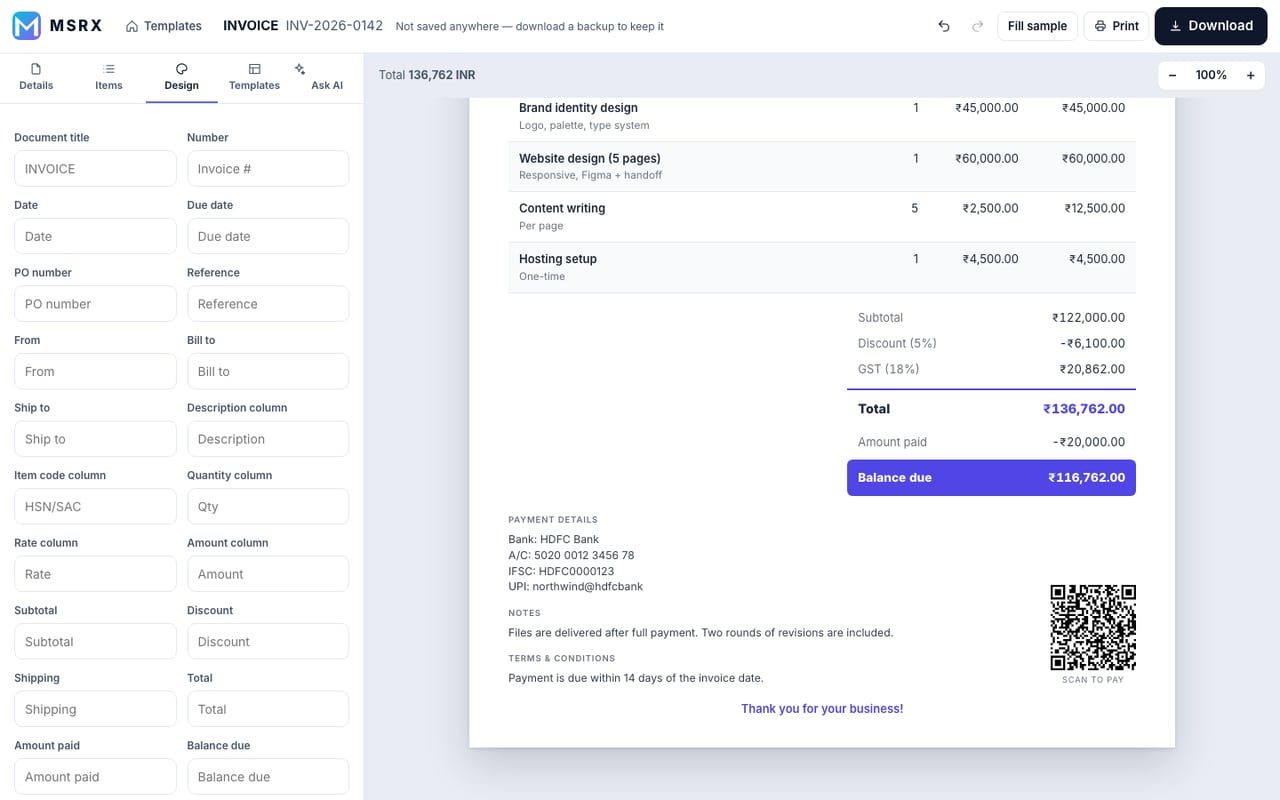
- Rename labels – call “Invoice” a “Tax Invoice”, or “Bill to” a “Customer”.
13Try another template any time
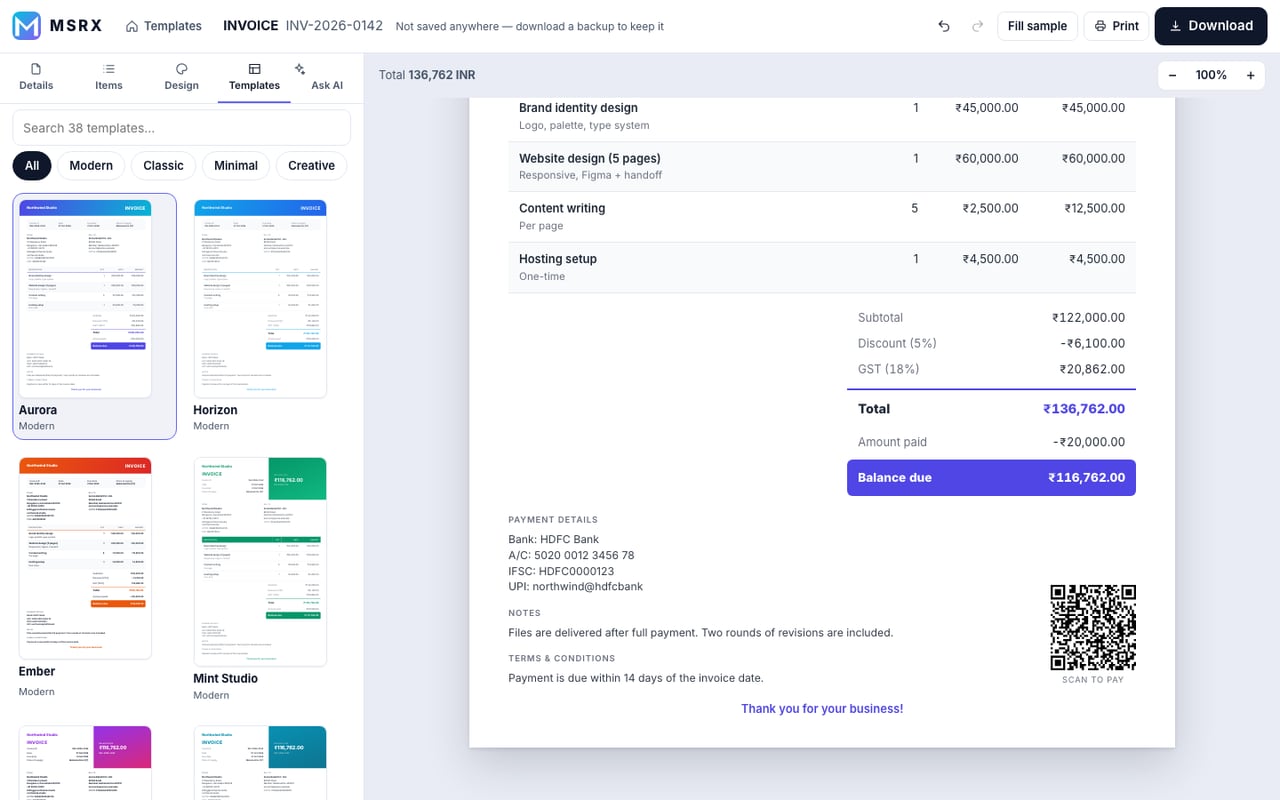
The Templates tab lists all 38 designs with your own details already in them. Click one and the paper changes at once.
14Let AI do the typing
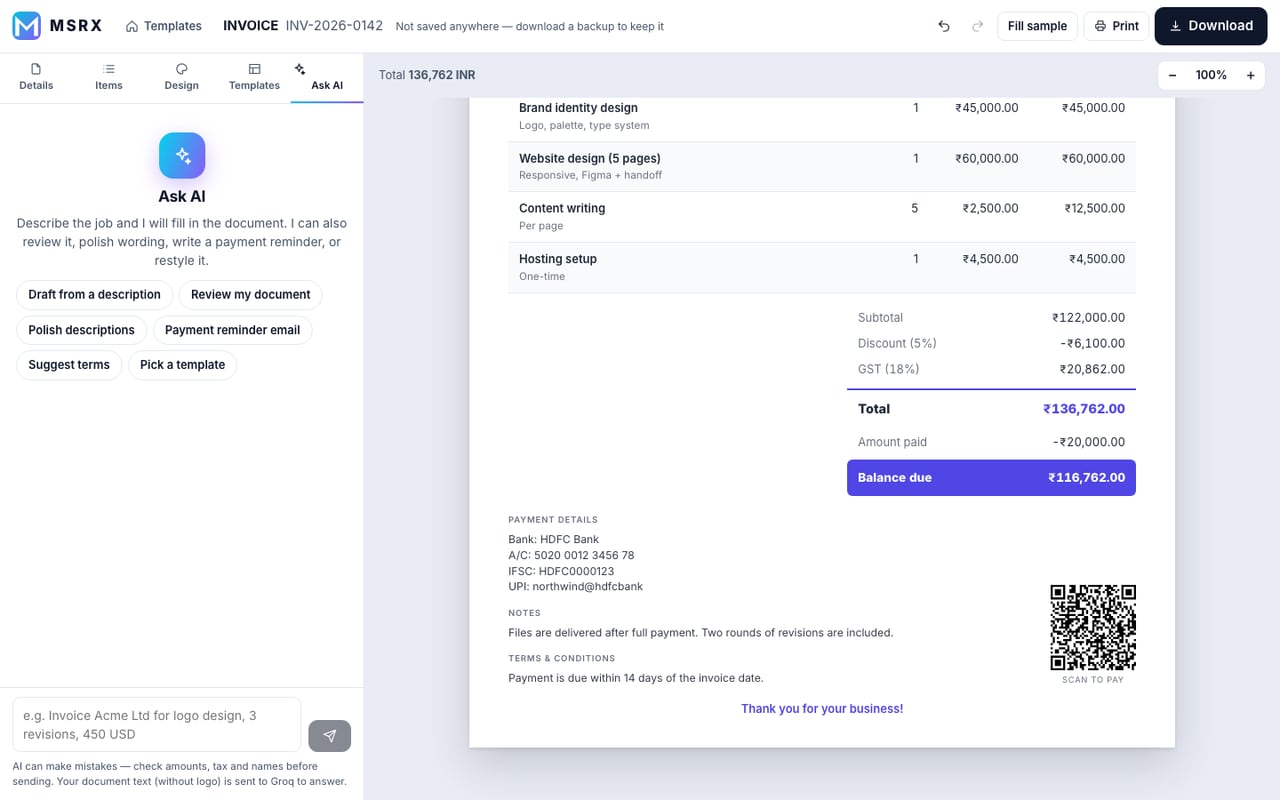
Open the Ask AI tab and describe the job in plain words, or tap a suggestion.
- Example: “Invoice Acme Ltd for logo design, 3 revisions, 450 USD”.
- The AI answers and shows an Apply to document button. Nothing changes until you press it, and Undo brings the old version back.
- It can also review your invoice, polish wording, suggest terms or write a payment-reminder email.
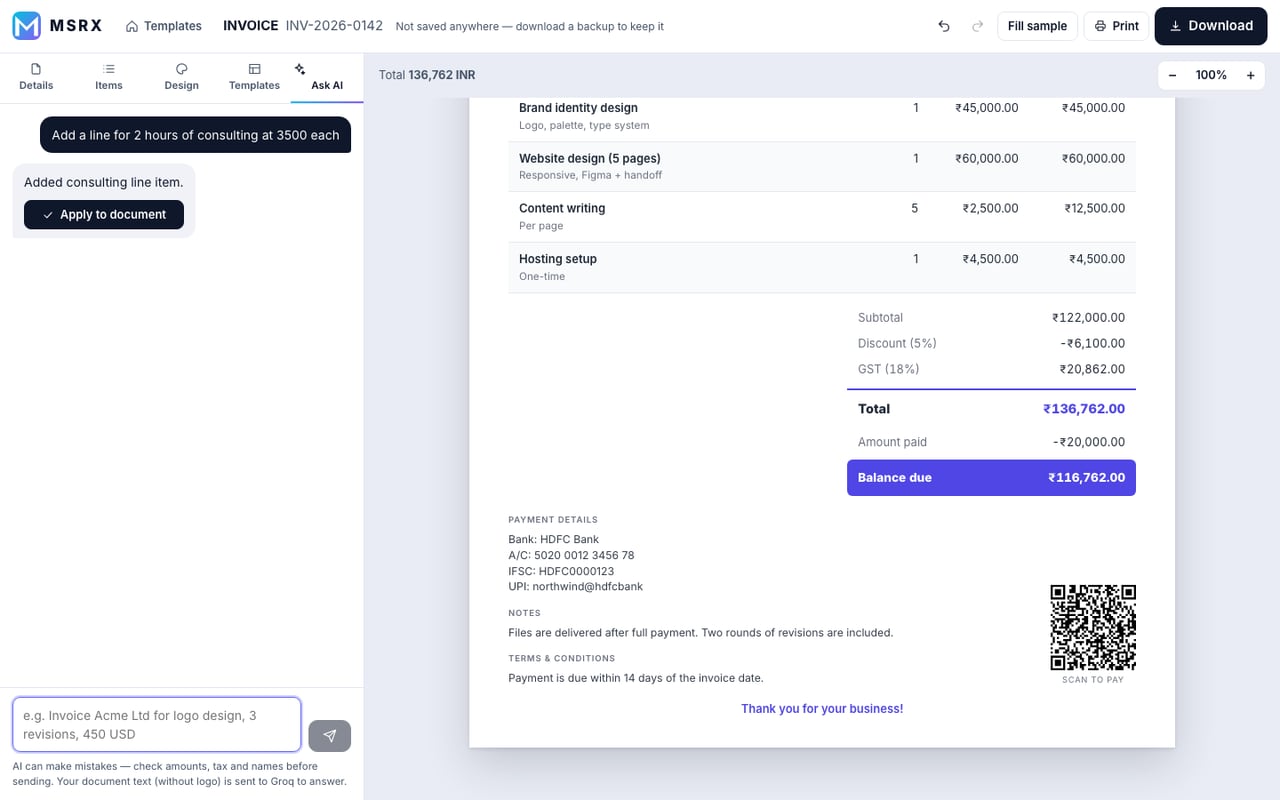
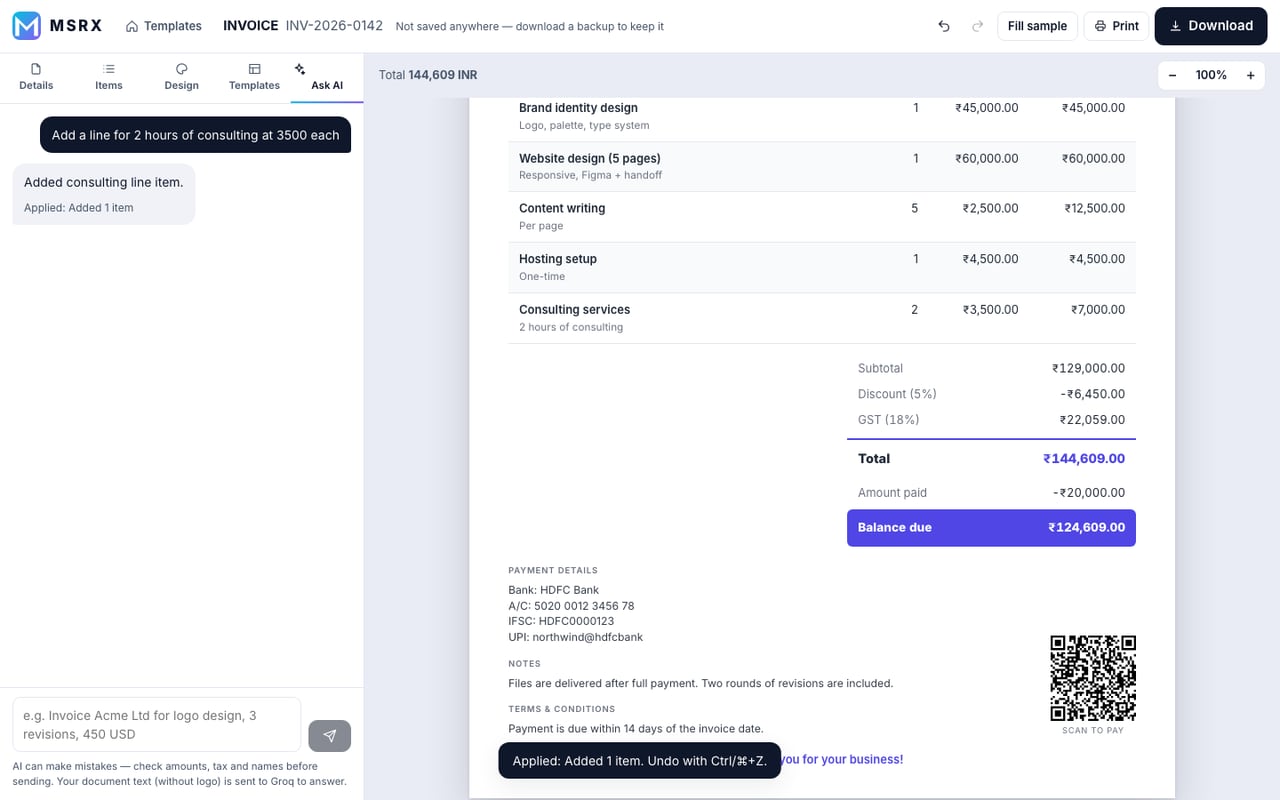
Tip: Only the text of your document goes to the AI, never your logo. Check amounts and names before you send anything.
15Download or print
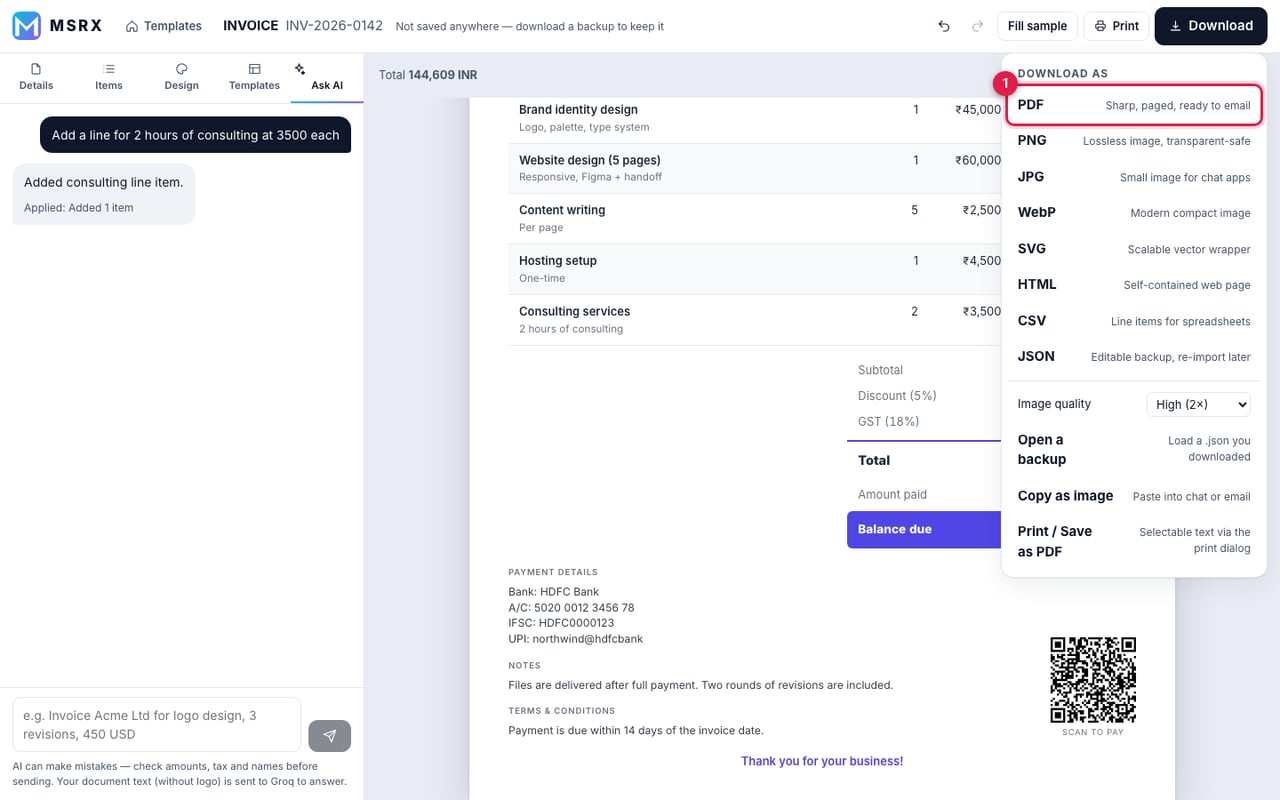
Press the dark Download button at the top right and choose a format.
- PDF – best for emailing or printing.
- PNG, JPG, WebP – pictures, handy for WhatsApp and chat apps. “Image quality” sets how sharp.
- SVG – scalable picture. HTML – a single web page. CSV – line items for Excel or Sheets.
- JSON – your backup file (see the next step).
- Copy as image pastes straight into chat or email. Print / Save as PDF opens the print dialog and keeps text selectable.
16Keep it for next time
This app saves nothing, on purpose. Your invoice lives only in the open tab and disappears when you close it.
- To reuse a document, download the JSON backup. It is a small file on your device.
- Next time, tap Open a saved backup (.json) on the home page, or “Open a backup” in the Download menu, and pick that file. Everything comes back, logo included.
- If you try to close the tab with unsaved work, the browser warns you first.
Tip: Make a backup of your usual client or your own business details once, then re-open it for every new invoice and change only the number, date and items.
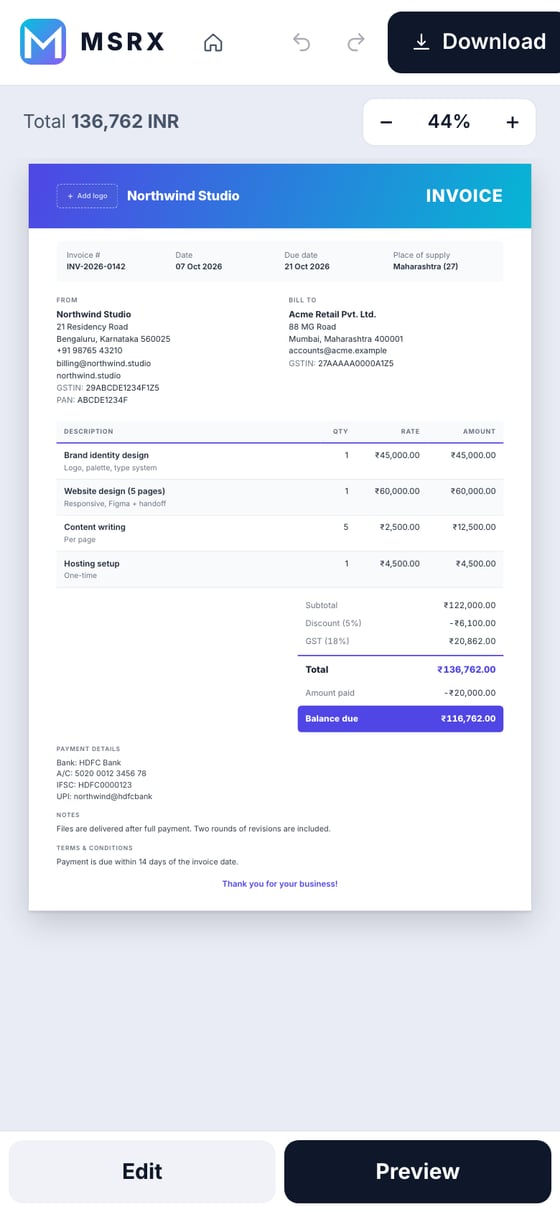
17Using a phone
It works the same on a phone. Use the Edit and Preview buttons at the bottom to switch between the form and the paper.
✓Quick fixes
- I closed the tab and lost my invoice.
- The app never stores anything. Download the JSON backup before you leave (see “Keep it for next time”).
- The total looks wrong.
- Check the Tax rate, whether “Prices already include tax” is on, and the Discount type (percent or flat). Discount is taken off before tax.
- My logo looks blurry.
- Use a bigger source image, ideally at least 600 pixels wide. The app keeps it sharp but cannot add detail.
- I want the Indian number style (12,34,567).
- Design tab → Typography & layout → Number format.
- I need an Invoice and a Receipt for the same sale.
- Change the Type in Details → Document, or open the Receipt template. Your details stay.
- The PDF has two pages.
- Shorten the notes or terms, or lower the text size on the Design tab. A long item list can run to a second page, which is normal.